Start here
What this manual is, who it is for, and how to use it.
This manual walks you through building a personal executive website that does two jobs. It presents you the way a strong brochure would, and it lets a visitor ask questions and get answers in your voice, grounded in a knowledge base you wrote and approved.
It comes from a real build. I'm Dan Oltersdorf, and I created danoltersdorf.com during my own executive job search, on my phone, without writing code. I worked with AI assistants for the content, the design, and most of the technical setup, and I asked a technically inclined friend to audit the result. Everything here is what worked, what broke, and what I would tell a friend before she started. You can see the site this guide describes at danoltersdorf.com.
What you will have at the end
- A knowledge base: a document of your stories, philosophy, facts, and boundaries that you have personally reviewed line by line.
- A style guide that keeps every AI-written sentence sounding like you.
- A site of a handful of pages, live on your own domain.
- A chat assistant that answers visitor questions from your knowledge base, with a spending cap and bot protection so it stays safe.
- A contact path, a booking link, and a routine for keeping everything current without touching code.
Three rules that carry the whole project
- Content comes first. Do the interviews and the knowledge base before you pick hosting or design. The technical choices get much easier once you know what will live on them.
- The AI drafts and you decide. Every fact, number, quote, and story is yours to confirm. AI tools will produce fluent text that sounds right and is wrong. You are the fact-checker.
- Your own words are the source of truth. When a document an AI compiled disagrees with what you said out loud in an interview, the interview wins and the document gets corrected.
How to use this manual
- Work in order the first time through. Each chapter says how long it takes and how technical it is.
- Tick the boxes as you go. Your progress saves in this browser.
- Tap any prompt to copy it, then paste it into your AI assistant.
- Skip ahead to Troubleshooting when something breaks. Nearly every problem in there happened to me.
The honest part about the technical pieces
Four parts of this project are technical: hosting and security certificates, the small program that connects your site to the AI, the bot protection, and the email records. I needed help with several of them and spent real time digging through settings screens. You may too.
Two things are worth knowing before you start. The technical parts are a contained job, a few hours in total, and an AI assistant can walk you through each screen. And they are the smaller share of the value. The part that decides whether the site helps you get hired is the content, and that part needs only you and a good conversation.
The five phases at a glance
| Phase | What happens | Who does the work |
|---|---|---|
| 1. Content | Interviews, recaps, knowledge base, style guide | You, with an AI as interviewer |
| 2. Concept | Positioning, audience, site map | You and the AI, in discussion |
| 3. Build | Pages, design, copy, images | The AI builds, you review |
| 4. Host and launch | Domain, hosting, chat backend, protection | You, step by step, or a helper |
| 5. Maintain | Keep it current, watch cost and questions | You, in minutes a week |
Before Phase 1, see the finished site, read how I did it, look at the map, and choose your tools in Choose your tools.
The finished site
Real screenshots of danoltersdorf.com, the end result this manual walks toward.
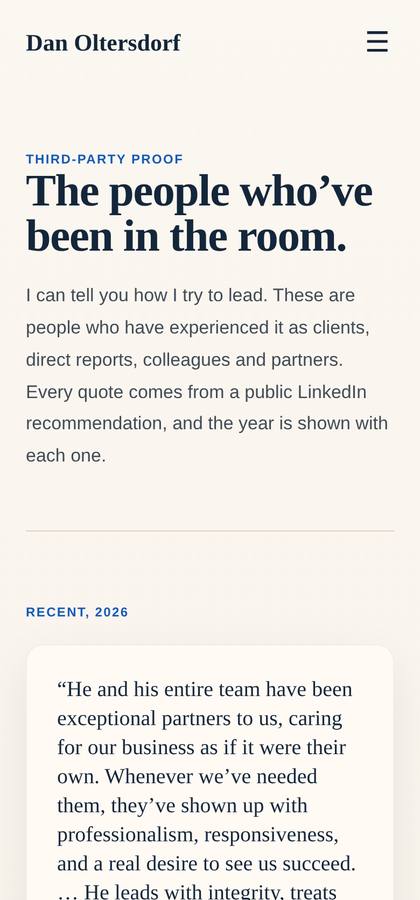
Before the steps, here is where they lead. These are real screenshots of the live site, not mockups. Everything below was built the way this manual describes: content first, design decoupled from it, and a chat assistant answering from an approved knowledge base.
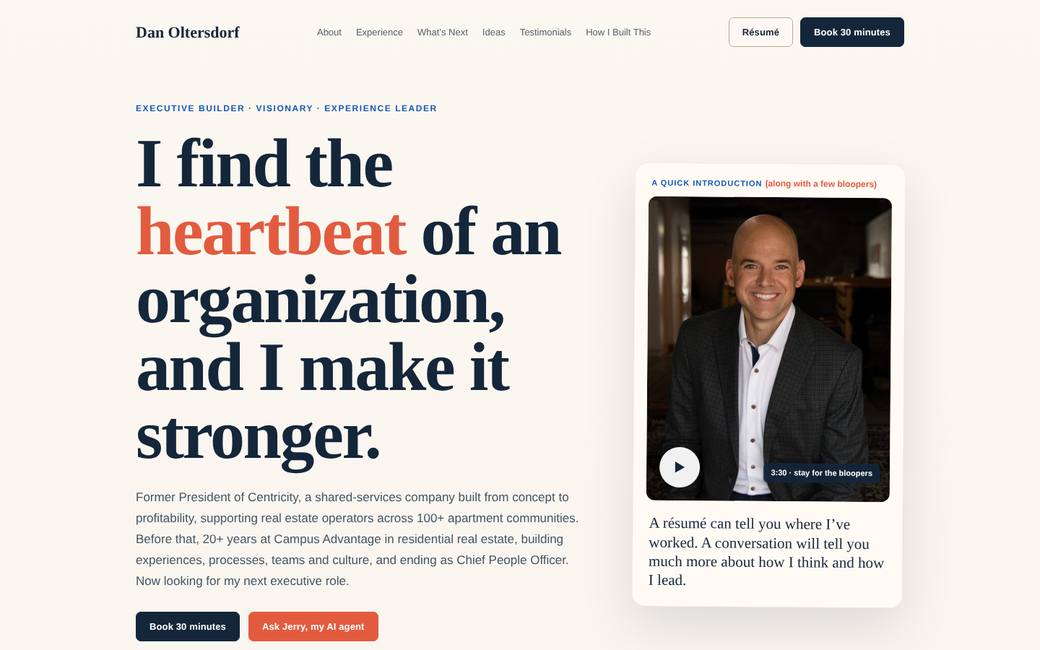
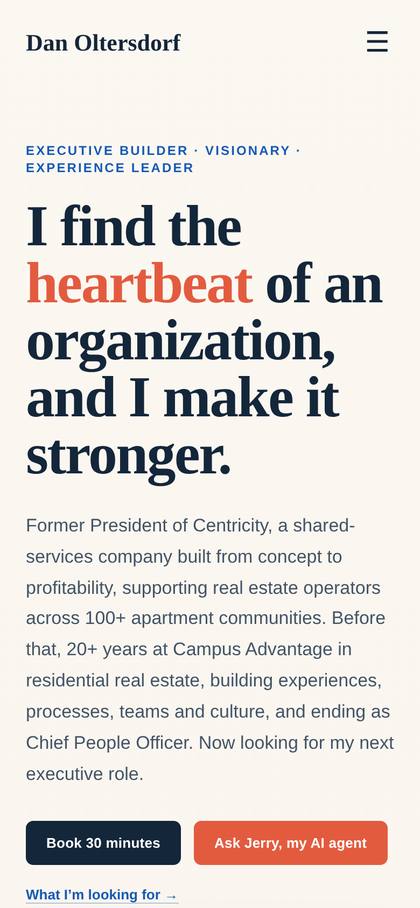
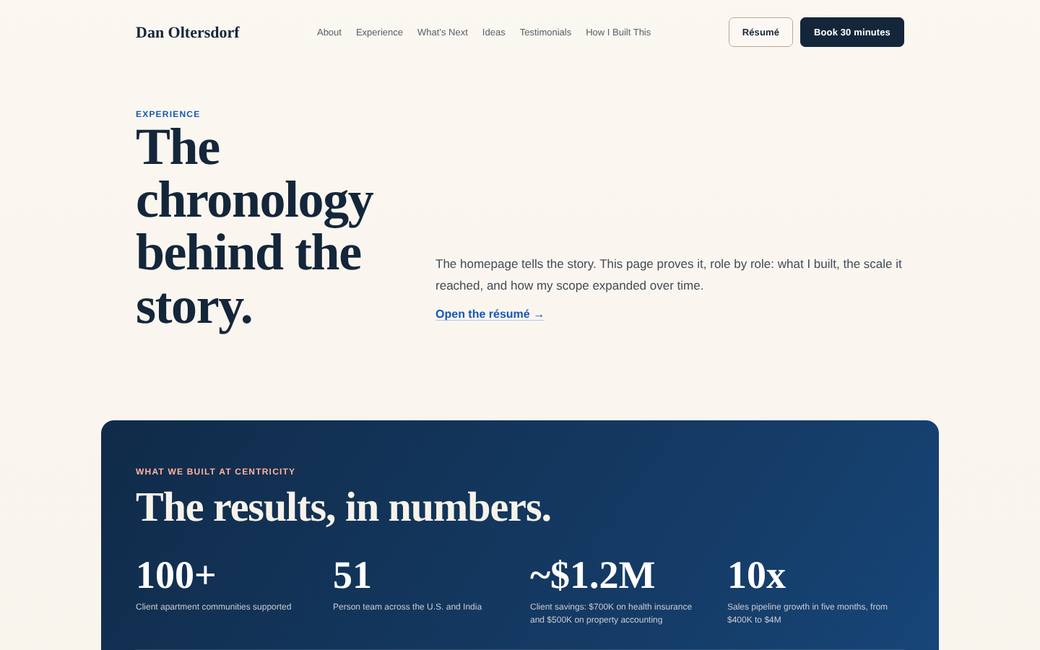
Build. Scale. Transform. Serve.
The homepage is organized around four verbs instead of a job-title list. Each section pairs a real scene with a number that backs it up.
Meet the assistant
My assistant is named Jerry. A visitor can tap a sample question or type their own, and the answer comes from a knowledge base I wrote, reviewed, and approved line by line.
How I built this
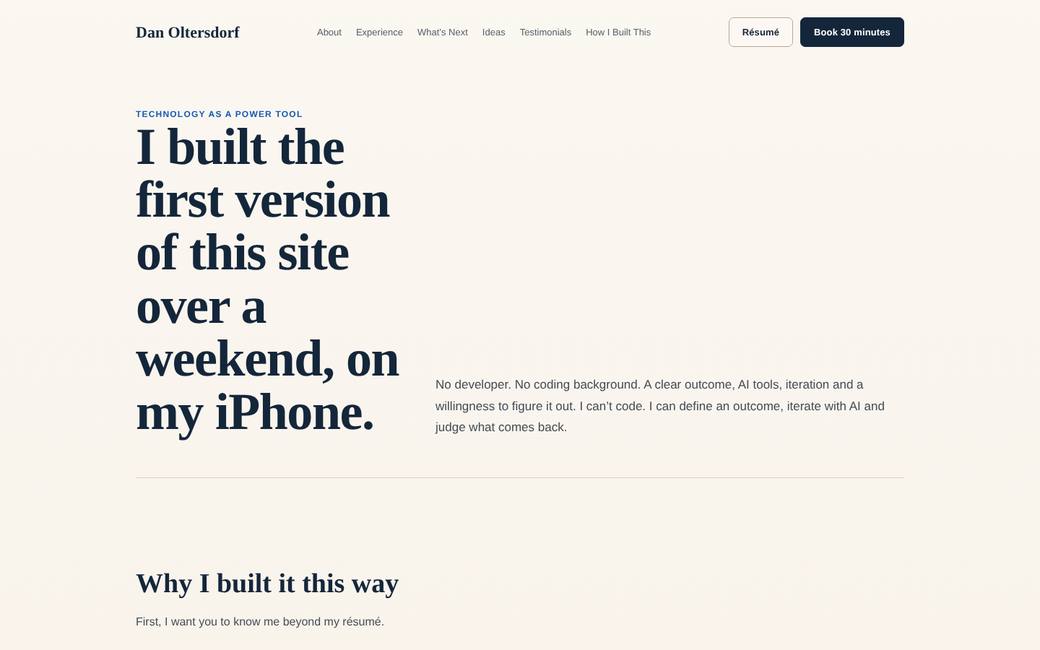
Nothing here is out of reach. Every piece on this page is covered in the chapters that follow, in the order it was actually built.
How I did it
The real sequence of the build, including the detours.
This chapter is the real order of events, including the detours, because the detours are where most of the lessons are.
Where it started
I was in an executive job search. I had a resume, a LinkedIn profile, and a set of working documents that AI assistants had helped me compile from strategic reviews and old decks. What I did not have was a way for someone to get a real feel for how I think without getting me on a call first.
The idea was simple. Build a site where a recruiter, a board member, or a CEO could interview me while I was not there, backed by a knowledge base I controlled completely. The site itself would be the proof: I conceived it, built it, and can maintain it without a developer.
The sequence
- Content first. I did structured voice interviews, mostly on walks, with an AI assistant asking the questions. After each session it wrote a recap, and I corrected the recap before anything went into the knowledge base. Sessions were organized by theme: the hard decisions, leadership philosophy, what drives me, what is next.
- A correction that shaped everything. An AI-compiled background document contained a story about a conflict between two partner companies. It read well. It did not match what happened. I caught it because I was reading the recaps closely. That moment produced the rule that my spoken words are the source of truth, and older AI-compiled material is provisional until I confirm it.
- A prototype inside the AI tool. The first version, with the chat, worked only inside the assistant's preview. Visitors could not use it. That told me a real host and a real backend were needed.
- The first live version, on my phone. I built it over a weekend on my iPhone. My domain and hosting were already at GoDaddy, so I uploaded files through the hosting control panel's File Manager.
- The chat backend. The chat needed a small program running somewhere that holds the secret key and talks to the AI. I used Vercel for that. It took several attempts: a browser security error, a project name I could not reuse, a setting that blocked visitors, and an environment variable I forgot to add.
- An outside audit. A friend with a technical background reviewed the live site cold and sent more than twenty findings. Some were embarrassing: a security certificate that made browsers show a warning, a 547 KB headshot embedded in the page, and no real headings for search engines. I worked through the whole list in one long session.
- Protection. I set a monthly spending cap on the AI account, added Cloudflare Turnstile to keep bots off the chat, replaced my plain-text email and phone with a contact form, and told search engines not to index the site.
- A recruiter's feedback and a redesign. A recruiter gave me blunt feedback on positioning. I had a second AI assistant produce a redesign brief, then asked the first to review it from a recruiter's and a CEO's point of view. We discussed eight priorities before changing anything, then applied all the changes together.
- Tightening the backend. A technical friend later reviewed the chat function itself and flagged three things: the knowledge base was being fetched live from my own hosting instead of shipping with the function, the chat call was a GET request with the question sitting in the page address instead of a POST with a proper body, and nothing was capturing full question-and-answer pairs anywhere I could actually read them. All three got fixed in an afternoon.
- Still going. The knowledge base keeps growing, and the assistant, which I named Jerry after the movie, keeps getting better answers.
The stack, for reference
| Job | What I used |
|---|---|
| Interviews, writing, design, and code | Claude, with a ChatGPT project as a second opinion and for a redesign brief |
| Domain, hosting, and file uploads | GoDaddy, through cPanel File Manager |
| Knowledge base the chat reads | A text file shipped inside the chat function's own project, not fetched from the website |
| Chat function | A small program on Vercel, connected to a private GitHub repository |
| AI answers | Anthropic's API, with a monthly spending cap |
| Bot protection | Cloudflare Turnstile |
| Contact form | Formspree, checked through a function first |
| Booking | Calendly |
| Question and answer log | A Google Sheet, written to from inside the chat function |
What I would tell you before you start
- Interview first. Design later. The design got easier every time the content got sharper.
- Read every recap. The AI's mistakes look like your own good ideas.
- Ask for the words before the code. I asked to see the copy for every change before any file was touched.
- Have someone smart review the live site cold, on a phone and a laptop, before you tell anyone about it. Have them look at the backend too, not just the pages. Mine found real problems after launch, not only before.
- Treat AI as a power tool. I built a cedar pergola with power tools because hand tools would have taken many times longer, and I respect the saw. Same approach here: it removes friction, and it still needs judgment, training, and guardrails.
- Expect the technical setup to take a few tries. The errors are ordinary and each has a known fix. See Troubleshooting.
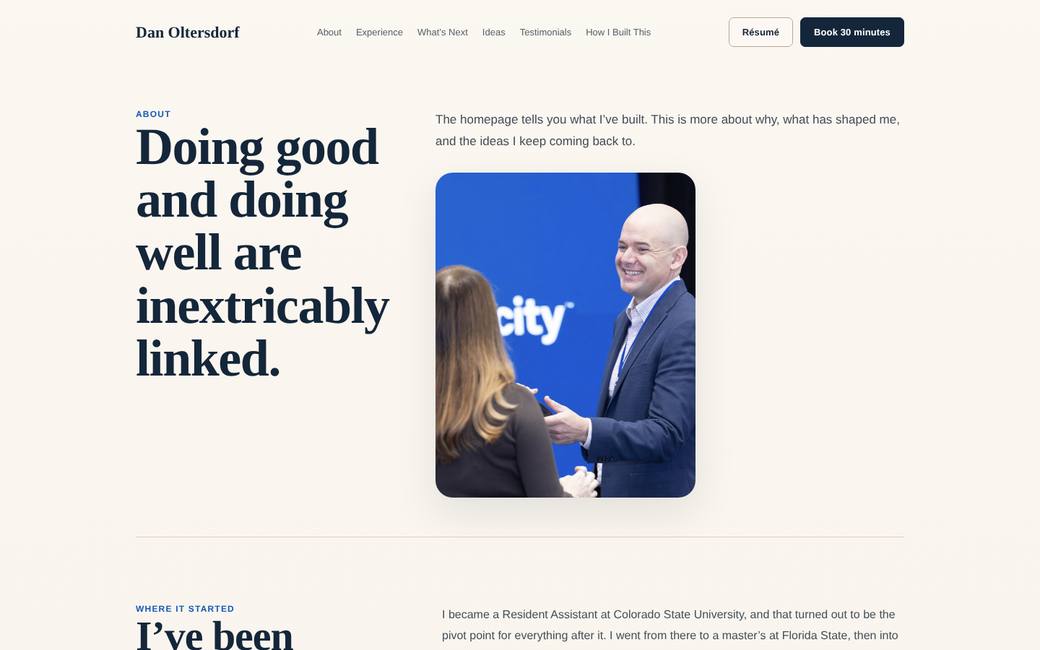
The site, concept to now
Seven versions in about ten weeks, and what changed each time.
Nobody gets the site right on the first pass. Mine went through several recognizable versions, and each one changed because someone, or something, showed me a problem. Reading the sequence is a good way to see what to expect. For what the current version actually looks like, see the finished site.
The versions
- Three prototype directions. Built inside the AI tool's preview while the content phase was still under way. The first was a brass, teal, and bone architectural look. The second was a forest and lake look with a topographic feel. The third settled on navy and crimson with an athletic tone, condensed headlines, and a rowing lane-line motif that used my boat number as a lane marker. Sections: a hero, how I lead, the AI assistant with seven suggested prompts, a stat strip, life beyond work, testimonials, and publications.
- The one-page infographic. A separate "value at a glance" graphic built to see how the message read when stripped down. It gave the project its language: the heartbeat line, the equation of doing good and doing well, and a four-beat career arc. It also produced the palette below, which carried forward.
- The first live site. Built on an iPhone over a weekend and uploaded to GoDaddy. Five pages: home, testimonials, services and consulting, writing and media, and a page about how it was built. A working chat, a resume download, and a booking link. The palette shifted to deep green and cream.
- The audit fixes. A friend's outside review produced more than twenty findings. The fixes included a real security certificate, a headshot compressed from 547 KB to about 25 KB, real headings, social preview tags, a favicon with my initials, a phone menu, a send button on the chat, and a contact page in place of a plain email address.
- The protection pass. Turnstile on the chat, a spending cap on the AI account, a robots file that keeps the site out of search results, conversation guardrails, and stacked answers with follow-up buttons.
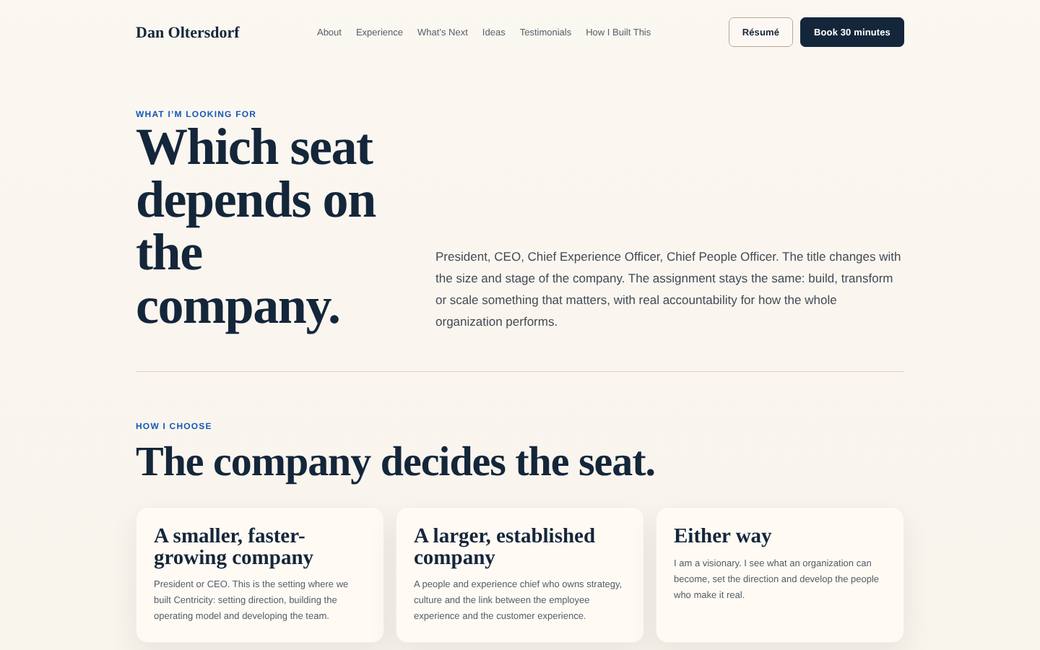
- The recruiter's feedback. A recruiter said the target role was unclear. That led to a page on which seat fits which kind of company, a broader eyebrow line, and a homepage rebuilt around four verbs: Build, Scale, Transform, Serve.
- The redesign review. A second AI tool produced a full redesign draft. The first assistant reviewed it as a recruiter and as a CEO would, and eight priorities were discussed before any change. The result: a dark throughline band, a proof block with real numbers, a pergola time-lapse compressed from 24 MB to about 600 KB, a "which seat depends on the company" section, and two clear closing paths, book time or ask the assistant.
- The backend hardening. A technical friend reviewed the chat function itself, not just the pages. Three fixes followed: the knowledge base moved into the function's own project instead of being fetched from the website live, the chat call became a POST with a JSON body instead of a GET with the question in the page address, and full question-and-answer pairs started logging to a sheet I can actually read.
How the words changed
The visual changes are easy to see. The changes in wording did more of the work. Each row below is a real edit and the reason for it.
| Before | After | Why |
|---|---|---|
| "...and I make it louder" | "...and I make it stronger" | A word-level choice about how the line lands with executives. |
| 28 years, "nearly 30," and 25+ in different places | 25+ everywhere | Readers notice when a number changes from page to page. |
| A long title including "Operating Executive and Culture-Focused Builder" | "Executive Builder, Visionary, Experience Leader" | Shorter, and it widened the roles a recruiter would consider. |
| Three title pills up front | An assignment statement first, with the pills demoted | A recruiter said the target was unclear. |
| A strong retention claim | "Every client was successfully transitioned" | The original did not survive a close look. |
| Revenue figures in early drafts | Client savings and a pipeline growth figure, both labeled | Some numbers were forecasts or disputed. |
| "How I lead," drawn from assessment reports | "How I think," in plain language | Framework names and derailer language stay off public pages. |
| Nine sample question buttons | Five | Fewer, stronger prompts got used more. |
| Abstract chapter copy | Real scenes and specific numbers | Scenes are memorable and summaries are not. |
| "Coming soon" cards | Removed | A placeholder does less than no card while you are on the market. |
What to take from it
- Expect to change your mind about the design and about the words. Both are cheap to change when the content sits in one file and the styling in another.
- Outside eyes found things I could not see on my own: technical problems from one friend, positioning problems from a recruiter, backend problems from another friend, and over-claiming from a second AI tool.
- The most important edits were about honesty. Each time a claim came out or got softened, the site became easier to defend in an interview.
- A finished site is not the last version. It is the one that was good enough to share while the work continued.
The map
The four layers of the project and how a visitor's question travels through them.
Before any steps, get the shape of the whole thing in your head. The project has four layers. Each has a different owner and a different level of difficulty.
| Layer | What it is | Who does it | Difficulty |
|---|---|---|---|
| 1. Content | Your stories, facts, philosophy, and rules for how you sound | You. This is the real work. | Yours to do |
| 2. Site pages | The pages a visitor reads, on your domain | The AI writes and builds. You review. | Yours to do |
| 3. Chat backend | A small program that holds a secret key, checks the visitor is human, and asks the AI to answer using your knowledge base | You with step-by-step help, or a helper | Helper zone |
| 4. Housekeeping | Domain, security certificate, email records, contact form, booking link | You, following the steps, with an AI to read screens with you | Some digging |
What happens when a visitor asks a question
- The visitor types a question in the chat box on your page, or taps one of your sample prompts.
- An invisible check runs. Cloudflare Turnstile decides whether the visitor is a human and hands the page a token.
- The page sends the question and the token as a POST request with a JSON body to your chat function, the small program hosted on a platform such as Vercel.
- The function verifies the token with Cloudflare, using a secret key that lives only on the platform. If the check fails, it stops there.
- The function reads your knowledge base, a plain text file that lives inside the function's own project, and sends it along with the question to the AI provider using your API key.
- The AI answers in the voice and within the rules you wrote, and the function returns the text to the page.
- The function writes the question and the answer to a log you can read, such as a Google Sheet.
- Your account is billed a small amount, capped by the monthly limit you set.
Where the difficulty really sits
Layer 3 has the most unfamiliar words: serverless function, environment variable, repository, CORS, deployment protection. Each is a small idea. The glossary explains all of them in one sentence, and the backend chapter takes them one screen at a time.
Layer 1 has no unfamiliar words, and it is the layer that decides whether the site helps you get hired. Put your energy there.
Share and protect this guide
How to publish this guide as a subpage of your own site.
This guide is a small folder: index.html, a handful of compressed screenshots in an img folder, and a PDF copy. Upload the folder to your hosting, decide whether it needs a password, and share the address.
Publish it as a subpage
- Sign in to cPanel through your hosting dashboard and open File Manager.
- Go into public_html and create a new folder, for example
guide. That makes the address yourdomain.com/guide. - Upload the whole folder's contents into it:
index.html, theimgfolder, and the PDF. If you uploaded a zip, select it and choose Extract, then confirm the files landed directly inguideand not in a nested subfolder. - Visit yourdomain.com/guide in a private tab and check it on your phone. Confirm the images load and the PDF link downloads.
- Link to it from your site if you want it easy to find, for example from your "How I built this" page.
Decide whether to password it
A guide like this one is reasonable to leave open, since it contains no private information about you. If you would rather keep it to people you send the link to directly, cPanel's Directory Privacy tool protects a folder for free.
- In cPanel, open Directory Privacy and choose your
guidefolder. - Select Password protect this directory, give it a label, and save.
- Create a username and a strong password, and save.
- Test in a private tab. You should see a password prompt before the page loads.
Keep it out of search results
Whether or not you password it, you can still ask search engines not to index it. Add this to your site's root robots.txt, or to one inside the guide folder:
User-agent: *
Disallow: /guide/
This is a request that well-behaved search engines follow, not a lock.
Checklist
- index.html, the img folder, and the PDF are all uploaded to the same folder.
- The page loads at your chosen address with no broken images.
- The PDF link opens and downloads correctly on a phone.
- You decided, on purpose, whether the folder is open or password protected.
- If protected, you tested the password prompt in a private tab.
Choose your tools
Options for each layer, with strengths and limits.
Almost every layer has more than one good option. This chapter lays them out so you can choose with your eyes open. Plans, prices, and limits change often. Treat the details below as a snapshot and check each vendor's current page before you pay for anything.
Your AI assistant
You will use it as interviewer, editor, designer, and coder. Any major assistant can handle Phase 1. The differences show up in Phase 3, when you want to see a working page and get a download, and in how well it carries context from one session to the next.
| Tool | Strengths | Limits to plan around |
|---|---|---|
| Claude (Anthropic) | Projects keep your files and instructions available to every chat. Artifacts show a live preview of a page next to the chat. It can create and hand you files, including a zip of a whole site. Voice mode works for walking interviews. I built and maintained my site with it. | The free plan has daily message limits, so a long build session may stall. A paid plan removes most friction. Check the current plan page for the exact free-tier project count and limits. |
| ChatGPT (OpenAI) | Projects with file uploads. Strong at brainstorming and at producing a design brief. I used a ChatGPT project to produce a full redesign brief and then had Claude review it. Voice mode available. | Free-tier message and upload caps are tight, and file caps per project are lower on free plans. Long, multi-day builds work better on a paid plan. |
| Microsoft Copilot | Convenient if you already live in Microsoft 365. Good for documents and for summarizing files you already have. | As far as we know, it carries context between sessions less reliably than a project workspace. Previewing a page you are building is harder. Plan to re-upload your master document at the start of every session. |
| Google Gemini and NotebookLM | NotebookLM turns uploaded documents into a spoken overview, which is handy for sharing a document like this one as audio. Gemini works well with Google Drive files. | Not verified for the full build workflow here. Try a small task first, such as asking it to build a one-page site from your knowledge base, before you commit. |
Where the site lives
| Option | Strengths | Limits |
|---|---|---|
| Traditional hosting with cPanel (GoDaddy and similar) | Often already paid for with your domain. You upload files through a File Manager. Includes email, security certificates, and a folder password feature. This is what I used. | More screens and jargon. Certificates and file permissions can need attention. Cannot run the chat function itself, so you need a second service for that. |
| Netlify | Drag-and-drop deploys. Site and chat function can live in one place. Free tier available. | Password protection for a whole site is generally a paid feature. Check current plans. |
| Vercel | Connects to a GitHub repository, so an edit to a file in the repository redeploys automatically. Free tier available. I used it for the chat function. | A drag-and-drop zip upload works too, but every change means a brand new project with a new address. Connecting a repository, as this manual now recommends, avoids that. |
| Cloudflare Pages | Free, fast, and pairs with Turnstile and Workers for the chat function. | More technical to set up. Best with a helper. |
| GitHub Pages | Free for static pages. | No backend, so no live chat. Fine for a brochure-only version. |
| Site builders (Squarespace, Wix, Framer) | Point-and-click editing and hosting in one. | Adding a custom AI chat with your own knowledge base is difficult or impossible on most plans. Design control is limited. |
The chat backend
| Option | Notes |
|---|---|
| Vercel or Netlify function, connected to a GitHub repository | What I used. A single small file, a knowledge base file that lives in the same repository, an environment variable for your key, a free tier that easily covers a personal site. |
| Cloudflare Worker | Similar idea, more technical setup. |
| No backend at all | Skip the live chat. Link to a shared assistant or a published preview from your AI tool, or use a static Q&A page built from your knowledge base. You lose the on-page experience and keep the content. |
The AI provider behind the chat is separate from the assistant you use to build. I used Anthropic's API, which is billed by usage and is separate from a Claude subscription. Other providers offer equivalent APIs. See Anthropic's API documentation for the current details.
The supporting pieces
| Job | Options |
|---|---|
| Code storage for the chat function | GitHub (private repository), what I used |
| Bot protection | Cloudflare Turnstile (free, what I used), hCaptcha, Google reCAPTCHA |
| Contact form | Formspree (what I used), Netlify Forms, Tally, Google Forms |
| Question and answer log | A Google Sheet with a small Apps Script web hook (what I used), or a Supabase table |
| Booking | Calendly (what I used), Cal.com, Google Calendar appointment schedules |
| Master document | A Google Doc or Word file that you own outside any AI tool |
Ready? Continue to Accounts and costs.
Accounts and costs
Every account you will create, what it costs, and how to keep your keys safe.
You will end up with several accounts. Create them when you reach the phase that needs each one, not all at once.
Accounts checklist
- An AI assistant account (Phase 1). Paid plan recommended for the busy weeks.
- A password manager. Set this up before you create any other account.
- A master content document in Google Drive, OneDrive, or similar (Phase 1).
- A domain name, if you do not already own one (Phase 4).
- Hosting for the site (Phase 4).
- An AI provider account with API access and billing (Phase 4). This is separate from your assistant subscription.
- A GitHub account to hold the chat function's code (Phase 4).
- A platform for the chat function, such as Vercel or Netlify, connected to your GitHub account (Phase 4).
- A Cloudflare account for Turnstile (Phase 4).
- A contact form service such as Formspree (Phase 4).
- A Google account for the question and answer log, if you want one (Phase 4).
- A booking tool such as Calendly (Phase 4, optional).
What it costs
Figures are approximate and change. Check each vendor before you buy.
| Item | Typical cost | Notes |
|---|---|---|
| AI assistant subscription | About $20 a month for the standard paid tiers of the major assistants | Worth paying for one or two months during interviews and the build. Cancel or downgrade later if you like. |
| Domain and hosting | Varies by provider and plan | Many people already have both. |
| GitHub, Vercel or Netlify, Cloudflare, Google Sheets | Free tiers were enough for me | Confirm current limits. |
| AI API usage | Metered: you pay per question answered | The only variable cost. I capped mine at $20 a month and set the cap before going live. |
Keeping keys safe
An API key is a password that lets a program spend your money. Treat it that way.
- Store it in your password manager the moment you create it.
- Paste it only into the environment variable field on your hosting platform. Never into a chat with an AI assistant, an email, a text, a shared document, or a project file.
- Give the key a specific name so you can recognize it later.
- Set the monthly spending limit before the site goes public.
- If a key ever appears somewhere it should not, delete it in the provider's console and create a new one. It takes two minutes.
The Cloudflare secret key, the GitHub repository (keep it private), and any form or logging secrets follow the same rules. The Turnstile site key is public by design and can sit in your page code.
Phase 1: Content overview
What you will produce in the content phase and in what order.
This is the phase that matters most. The pages, the chat, and the design all draw on what you create here. A weak knowledge base produces a generic site with a chat that sounds like every other bot. A strong one produces answers that make a stranger feel they have met you.
What you will produce
| Deliverable | What it is | Chapter |
|---|---|---|
| Master reference | One document with your career facts, titles, dates, and the positioning statements you already trust | This chapter |
| Fact register | A table of every number and claim with its source and whether you confirmed it | Source of truth |
| Interview recaps | Written summaries of each session, corrected by you | Interviews and Recap loop |
| Knowledge base | The approved, themed collection of stories and answers the chat draws from | Knowledge base |
| Style guide | Rules for how you sound and phrases you never use | Voice rules |
| Sample prompts and testimonials | The clickable questions and the real quotes from other people | Prompts and proof |
| Disclosure boundaries | What is public, what is private, and what the assistant will decline to discuss | Boundaries |
Set up your working space first
- Create a project or notebook in your AI assistant for this build. Name it after the site. Everything for this build goes in one place so the assistant keeps context.
- Write the project instructions. Use the template in Templates. They tell the assistant what the project is, what success looks like, which files are authoritative, your voice rules, and how to respond during planning versus reflection.
- Start your master document outside the AI tool. A Google Doc or Word file works. This is the copy you own. If you ever switch assistants, you upload this file and keep going.
- Upload your existing material: current resume, LinkedIn export, any older resumes, recommendations, published writing, talks, and any documents that describe your career.
- Ask the assistant to read everything and report conflicts. Different dates, titles, or numbers across documents are your first fact-check list.
I have uploaded my resume, LinkedIn export, and other career documents. Read all of them and give me: (1) a one-page summary of my career as the documents describe it, (2) every place where the documents disagree with each other on dates, titles, numbers, or descriptions, and (3) every number or claim that appears without a source. Do not fix anything yet. I will tell you which version is right.
Time and pacing
Plan on roughly six to ten interview sessions of 20 to 40 minutes, each followed by a 10 minute review of the recap. I did mine in bursts over a couple of weeks, often on walks. A session a day works. Two a day tires you out and the answers get thin.
Source of truth
The rule that keeps AI-invented details out of your site.
AI assistants fill gaps with plausible detail. A document compiled by an assistant from old decks and emails can contain a story that reads beautifully and never happened. If that story lands in your knowledge base, your chat assistant will tell it to strangers in your voice.
The fix is a simple hierarchy, written down at the start.
The three tiers
| Tier | What belongs here | How to treat it |
|---|---|---|
| 1. Confirmed | What you said in an interview and approved in the recap. Your final resume and LinkedIn text. | Authoritative. When another source disagrees, this one wins. |
| 2. Yours, not yet re-checked | Documents you wrote yourself long ago, speeches, articles, old bios. | Useful for facts and phrasing. Confirm before publishing anything specific. |
| 3. Provisional | Anything compiled by an AI or another person. Strategic reviews, summaries, third-party notes. | Good for dates, titles, and figures to verify. Never a source for stories, quotes, or characterizations. |
Write the rule into your project instructions
Sourcing hierarchy: direct statements from me in interview sessions, after I approve the written recap, are the source of truth. Documents compiled by an AI or by other people are provisional background. Use them for dates, titles, and figures I can verify, and never for stories, quotes, or characterizations. When something I say conflicts with a file, tell me, and after I confirm, correct or remove the file content and list every file where the incorrect version appeared. Flag any number that lacks a source.
Build a fact register
A fact register is a table with one row per claim you plan to use publicly. It takes an hour to build and prevents most of the embarrassing errors.
| Claim | Source | Status | How to phrase it publicly |
|---|---|---|---|
| Team of 51 | Org chart, confirmed by me | Confirmed | A team of 51 across two countries |
| Revenue forecast of $4.1M | Board deck, forecast only | Forecast | Always labeled a forecast, or leave out |
| 100% customer retention | Marketing brochure | Disputed | Do not use until verified and reworded |
Statuses to use: Confirmed, Forecast, Estimate, Disputed, Unverified. Public copy may use Confirmed items freely. Forecasts and estimates must be labeled. Disputed and Unverified stay out.
Ask the assistant to check its own work
Compare my knowledge base, my resume, my LinkedIn text, and every page of the site. List every fact that appears in more than one place and show me where the wording or the number differs. Flag any number that is not in my fact register. Do not change anything yet.
Run this after every round of edits. It catches the drift that happens when the same claim gets rewritten in six places.
Running the interviews
How to set up, run, and get real material out of voice interviews with an AI.
Writing about yourself produces summaries. Talking to an interviewer who asks good follow-ups produces scenes, decisions, and lines you would never type. That is the material the chat needs.
Set up
- Use the voice mode of your assistant on your phone. Walking works well. People answer more freely when they are moving and not staring at a blank page.
- Open your build project so the assistant has your instructions and your existing documents.
- Paste the interviewer prompt below at the start of each session, then name the theme.
- Tell it the length. Twenty to thirty minutes is a good session.
You are interviewing me to build the knowledge base for my personal executive website. Today's theme is [THEME]. Ask one question at a time. Ask for a specific scene, a named decision, or a real number before you accept a general statement. When I give a general answer, ask what happened, who was in the room, what I decided, and why. When I contradict a document in the project, say so out loud and ask which version is right. Do not summarize until I ask. Do not add details I have not said. When I say "wrap up," write a recap in four parts: what I confirmed, lines worth quoting word for word, facts and figures with where they came from, and open questions.
Themes to cover
Do them in roughly this order. The early ones warm you up and the later ones go deeper.
- Origin: how you got into your field and the moment you knew what you wanted to build.
- Your biggest builds: the two or three things you created from nothing.
- The hard calls: decisions under pressure, what you chose, what it cost.
- Leadership philosophy: how you build teams, how you handle conflict, what you believe about people.
- How you think about technology and change.
- What you are proudest of and what you would do differently.
- Life outside work: the hobbies, the family, the practices that shape how you lead.
- What is next: the kind of assignment you want, the kind of organization, and what you will not do.
Question bank
Origin
- What did you think you would be doing at this stage of life when you were twenty-two?
- What was the first moment where you saw you were good at building something with people?
- Who took a chance on you early, and what did they see?
Builds
- Tell me about a time you started something with no playbook. What were the first ninety days?
- What did you have to invent that nobody handed you?
- What did the first customer or client see that convinced them?
- Which number are you proudest of, and where does it come from?
Hard calls
- Describe a decision you made with incomplete information. What did you weigh?
- Tell me about a person you had to let go or move, and how you handled the people around them.
- When did you disagree with your boss, board, or partner, and what happened?
- What part of a hard outcome was in your control, and what was not?
Leadership
- How do you know when a team is working well before the numbers show it?
- What do you do in the first week with a new team?
- Describe a leader who shaped you. What did they do that you still do?
- What do you say to someone who is struggling in a role?
Technology and change
- What is your rule for adopting a new tool in your organization?
- Where has technology helped your team, and where did it get in the way?
Values and life
- What do you do on weekends that makes you a better leader on Monday?
- What does success mean to you, in your own words?
- When are you at your best at work?
What is next
- Describe the assignment you want in one sentence, without using a title.
- Which kinds of organizations should not call you?
- What would make you say no to an attractive offer?
The skeptic's questions
- What would a former colleague say is your biggest blind spot?
- Why should we believe the numbers you cite?
- What are you leaving out?
Interview technique that produces better material
- Scenes beat summaries. "We built a culture of trust" is filler. "On day three a client called me at 9 p.m. and I picked up" is a story.
- Ask for the specifics you would not put on a resume: the room, the weather, who said what, what you almost did instead.
- Answer the skeptic's question in the interview, so the assistant can answer it later in your voice.
- Say a line twice if you like it. The recap will mark it as a quotable line.
- Do not stop to edit while you talk. The recap is the place for corrections.
The recap loop
How a session becomes approved knowledge base content.
Nothing from an interview goes into the knowledge base until you have read the recap and corrected it. This is the quality gate for the whole project.
The loop
- Run the session. When you say "wrap up," the assistant writes the recap.
- Read it the same day, while you still remember what you meant. On a phone, read it slowly and out loud if that helps.
- Mark it up in plain language. Tell the assistant which lines are wrong, which are exaggerations, which are missing, and which you never said.
- Ask for a corrected recap and read it again. Repeat until nothing in it makes you wince.
- Approve it in words. Say "approved, add to the knowledge base under [theme]." The assistant files it. Until you say that, it stays a draft.
What a good recap looks like
| Part | Contents |
|---|---|
| Confirmed | What you said, in the first person, in your own phrasing |
| Quotable lines | Word for word, marked as verbatim |
| Facts and figures | Each with its source and a status from your fact register |
| Open questions | Things you did not settle, so the next session can |
What to look for when you review
- Any detail you did not say, such as a name, a date, a place, or a quote.
- Any adjective doing work that you would not use yourself, like "transformative," "passionate," or "visionary."
- Any claim that credits you with everything. Change it to "my team" or "we" where that is the truth.
- Any person named who has not agreed to be mentioned.
- Any number that is rounded up.
- Anything that sounds smoother than you actually talk.
Here are my corrections to the recap. Line 3 exaggerates, so change it to say the team supported the transition and I did not do it alone. Line 7 includes a client name I have not cleared, so use "a mid-sized operator." The quote in line 9 is not word for word, so mark it as a paraphrase. Please rewrite the recap and list every change you made so I can check them.
When a later session contradicts an earlier one
Your understanding changes as you talk. When it does, tell the assistant which version is now correct. Ask it to list every knowledge base entry that used the older version and correct all of them.
Building the knowledge base
Structure, voice, guardrails, and where the file lives.
The knowledge base is one document that the chat assistant reads before it answers anything. Its quality sets the ceiling for how good the chat can be. A separate copy lives in your master document, and the working copy lives in the chat function's own project, not fetched live from your website.
Structure
Organize by theme, in the first person, in short sections a visitor's question can map to. My file grew in layers as the interviews went on, and the structure below is what it settled into.
| Section | What goes in it |
|---|---|
| Identity and purpose | Who you are in a paragraph, your purpose statement, your signature phrases |
| Career arc | Roles, dates, and one honest paragraph per chapter |
| Signature builds | The two or three things you created, with the origin story, the hard parts, and confirmed numbers |
| How you think | Three or four principles, each with a real example |
| Leadership stories | Scenes from your interviews, in your words |
| Technology view | Your stance on tools and change, with your own analogy |
| Life outside work | The hobbies and commitments that inform how you lead |
| What you are looking for | The assignment, the kind of company, and the disqualifiers |
| Testimonials | Real quotes with attribution you have permission to use |
| Guardrails | Topics the assistant declines, and exactly how it should decline |
| How to answer | A short note on point of view: does the assistant speak as you, or about you in the third person |
Writing rules for the file
- First person, present or past tense as you would speak, unless you want the assistant to speak about you in the third person. Either works. Decide once and say so at the top of the file.
- Every story has a scene, a decision, and a result. Skip the summary sentences that could describe anyone.
- Every number is in the fact register and phrased the way you approved.
- Label forecasts and estimates as such.
- Include short "if asked about X, say Y" notes where a topic is delicate.
- Keep the tone of your style guide. If the assistant drafts in a voice you would never use, fix the source file, not the chat.
The guardrails section
This section tells the assistant what to refuse and how. It protects you from the awkward questions and from the assistant inventing answers.
TOPICS I DON'T DISCUSS
- Compensation, salary expectations, equity, or relocation. Say: "That's a conversation for me directly. You can book time from the link on this page."
- Opinions about named former employers, colleagues, or partners. Say: "I keep my focus on what I learned and built. Happy to talk about that."
- Anything not covered in this document. Say: "I don't have that in front of me. The best way to find out is to talk with me directly."
- Confidential information from any employer, client, or partner.
- Personal details about my family beyond what is written here.
Never invent a story, a number, a quote, or a name. If a question needs something that is not in this document, say so.
Where the file lives
- During Phase 1, inside your AI project, where the assistant can update it after each approved recap.
- Master copy, in your own Google Doc or Word file, updated whenever the project copy changes.
- In production, as a plain text file named knowledge-base.txt that lives inside the chat function's own project and ships with it on every deploy. See the backend chapter for why it lives there and not on the website itself.
Check the knowledge base like a skeptic
Read my knowledge base as a skeptical recruiter would. List every claim that sounds inflated, every place where I take credit that probably belongs to a team, every number without context, and every phrase that could apply to any executive. Suggest a specific, plainer replacement for each. Do not change the file.
Voice rules and style guide
How to capture the way you sound so every draft matches.
Left alone, an AI assistant writes in a polished, generic voice that every reader has learned to skim past. A style guide turns your instincts into rules the assistant can follow.
Build it from evidence
- Gather samples. Three to five things you wrote and liked: an email, an article, a post, a speech.
- Gather rejects. Any AI draft you disliked, with a note on why. The reasons are the most useful data you have.
- Ask the assistant to extract rules, then edit them until they sound like decisions you made.
- Store the rules in the project instructions and at the top of your knowledge base.
Here are samples of my writing and several AI drafts I rejected, with my notes on why. Write a style guide of 10 to 15 specific rules that would make future drafts sound like the samples and never like the rejects. Give each rule a one-line example of a good sentence and a bad one. Include a list of words and constructions to avoid.
Examples of rules people end up with
These are the rules from my own style guide. Yours will differ, and the form is what to copy.
- No em dashes.
- No "not this, it's that" sentence structures.
- No lists of three items joined by semicolons.
- No aphoristic closing sentence that sums up the paragraph.
- Specific, unglamorous detail beats summary language. Name the people, the objects, the scene.
- Keep the rough edges. Irregular rhythm is part of sounding like a person.
- Do not claim credit for a team result. Say "we" or "my team supported."
- Word-level care: the same idea has one word that fits this audience and one that does not.
- Public copy leans toward sincere and strategic. Personal writing can be rawer.
Working rules for how you and the assistant collaborate
- Show me the words before you touch the code. Copy gets approved as text first, then goes into pages.
- One batch at a time. Decide a group of changes together, then apply them in one pass.
- Flag what you are unsure of. Unconfirmed facts get marked, not smoothed over.
- Push back. If a choice hurts my positioning, say so directly.
- Do the work. Skip announcements about what you are about to do.
Sample prompts, testimonials, proof
The clickable questions, the quotes from others, and the rules for numbers.
Three things sit between your knowledge base and a visitor's first impression: the sample questions they can tap, the words of other people about you, and the numbers you choose to show.
Sample prompts
A blank chat box scares visitors. A few good buttons tell them what is worth asking. Aim for five to seven.
- Write twenty candidates in four groups: leadership and philosophy, career and biggest build, values and how you think, and what is next.
- Tag each with a readiness label: Ready if your knowledge base has a strong answer, Thin if the answer is weak, Gap if there is nothing yet.
- Test the Ready ones in your assistant by asking them cold and reading the answers as a stranger would.
- Pick the strongest five to seven and keep the rest as a list for future interviews.
Examples of good prompts, close to the buttons on my own site. Notice they are phrased as a visitor would ask them, by name, since the visitor is talking to the assistant about you, not to you directly:
- What has Dan built?
- How does Dan lead?
- What is Dan looking for next?
- How does Dan think about AI?
- What do people say?
Testimonials
- Pull recommendations you already have on LinkedIn. Screenshots or copied text both work.
- Ask five to ten people for new ones. Make the ask specific: "Would you write two sentences about how I led the team through [specific situation]?"
- Get permission to use each quote and each name on your site.
- Keep quotes word for word. Do not let the assistant polish them.
- Attribute each with the person's role and relationship to you, such as "direct report" or "client."
- Feature two or three on the homepage, near the claim they support. Put the full set on a testimonials page.
- Add them to the knowledge base so the assistant can answer "what do people say about you?" with real words.
Numbers and proof
| Rule | Why |
|---|---|
| No number without a source in the fact register | A recruiter will ask where it came from. |
| Label forecasts as forecasts and estimates as estimates | A forecast presented as a result is the fastest way to lose credibility. |
| Say "increased" when you have no number | Made-up percentages get found out. |
| Describe scale with context | "Supported clients comprising more than 100 apartment communities" is accurate. "Managed 100+ properties" may not be. |
| Show two or three proof points, not ten | Three strong numbers persuade. Ten make the reader doubt all of them. |
| Sum only what you can trace | If two savings figures add to a total, show the parts in your notes. |
Boundaries and confidentiality
What to leave out, what to check, and how to protect other people.
Your site is public, and so is anything the chat can say. Decide the boundaries before you launch, write them down, and put them into the knowledge base as guardrails.
The boundary questions
- Current or former employer news. Which parts are public and cleared? Which are not? If a transition or announcement is involved, use only the wording that has been publicly approved.
- Named people. Who has agreed to be named? For everyone else, use a role, such as "a client CEO."
- Named clients, partners, and vendors. Do you have permission? Do you have an NDA that covers this?
- Compensation and relocation. Yours, your team's, and anyone else's stay out. The assistant declines and points to a direct conversation.
- Financial figures. Only confirmed, cleared figures, always labeled as actual, forecast, or estimate.
- Opinions about others. The assistant has none about former employers, colleagues, or competitors.
- Location and sensitive context. Some places or affiliations carry baggage in the current climate. You can name them in a chronology page and leave them out of the homepage.
- Family and health. Decide how much you share, and put a limit in the guardrails.
- Assessment reports. Personality or leadership assessment framework names and any derailer language stay off public pages. Use the plain-language insights.
Handling a transition or a hard chapter
If a role ended in a way that others could read as failure, settle on one approved sentence and use it everywhere. My approach: say what the organization decided, that priorities evolved, and what I built and supported through it. Do not narrate any pending negotiation. Do not name individuals. Do not claim you did everything alone.
Read every page of the site and my knowledge base. Flag every named person, client, or company, every financial figure, every mention of a current or former employer's news, and every place where I speak about compensation, opinions of others, or confidential matters. For each, tell me what the risk is and suggest a safer phrasing. Do not change anything.
Ask permission the easy way
For any person you want to quote or name, send a two-sentence note: what you want to say, where it will appear, and an easy way to say no. Keep the replies.
Positioning and audience
Decide who the site is for and what it must make them think.
Design decisions come from a clear answer to one question: who reads this, and what should they conclude in the first ten seconds? Spend an hour here before you brief any design.
Your three readers
| Reader | How they read | What they need to see |
|---|---|---|
| Recruiter | Scans fast. A profile gets seconds, not minutes. | Your title or target, the sector, the scale, two proof points. Easy to match to a search. |
| CEO or board member | Reads more, looks for judgment and fit. | How you think, what you have built, what you are like to work with. |
| Peer or referrer | Deciding whether to vouch for you. | Something specific enough to repeat, and a low-effort way to introduce you. |
Exercises
- Search yourself like a recruiter. In a private browser window, search the exact title you want plus your city. Are you in the results? Which title variations find you? Write down what you find.
- Write the assignment in one sentence, without a title. "I build the people and operating systems for growing organizations, and I do it best where I can shape strategy." Then write the title or titles you will accept.
- Choose three proof points from your fact register that support that sentence.
- Pick the one number for tenure and the one title, and use them on the site, the resume, and LinkedIn. My own audit found "28 years," "25+," and "nearly 30" on different pages. Readers notice.
- Name the seat. If you are open to several senior titles, explain when each fits. A recruiter who cannot tell what you want will guess wrong.
Legibility over vagueness
Job seekers over fifty often get advice to hide the early years, drop dates, and tone down what they have done. Rob Humphrey, a longtime LinkedIn insider, argues in his playbook Not Starting Over that hiding makes a candidate thinner and harder to find. Filters search for terms, so stripping years removes the terms that would have matched. The site you are building takes the opposite approach: all of it stays, described in the language people actually search for.
The same playbook makes a second point that shapes this project. Much of a senior job search comes from people who already know your work, not from applications. A site with a chat that answers as you is an always-on version of a person vouching for you to a stranger.
Your positioning worksheet
| Line | Your answer |
|---|---|
| Who I am in one sentence | |
| The assignment I want | |
| Titles I will accept | |
| Sector I am known for | |
| Three proof points | |
| What I will not do | |
| How a recruiter finds me |
Fill this in on paper or in your master document, then give it to your assistant as the brief for the site map.
The site map
Which pages you need, what each one does, and a proven homepage order.
A personal executive site needs fewer pages than most people think. Each page has one job. These are the pages on my own finished site; see the gallery for what several of them look like.
A working page set
| Page | Its job |
|---|---|
| Home | Tell the visitor who you are, what you want, and why to believe you. Point to the chat and to a call. |
| About | The person: values, hobbies, volunteering, what drives you. |
| Experience | The chronology, with the detail a recruiter checks against your resume. |
| What is next | The assignment you want and the kinds of company that fit. |
| Ideas or writing | Links to your articles, talks, and videos. |
| Advisory and speaking | What you offer outside a full-time role. |
| Contact | A form and a booking link, with no plain-text email. |
| Testimonials | The full set of quotes, linked from the homepage. |
| How I built this | The proof of the technology claim. |
My site started with five pages and grew to nine after a recruiter review. Start small. Add a page only when you have real content for it.
A homepage order that works
- Hero. A one-line statement of what you do, a sub line with your credential and scale, a proof row of two or three defensible numbers, and two buttons: book time, and ask the assistant.
- The throughline. Your career in four beats, each a single strong sentence.
- Proof block. The biggest thing you built, with real numbers and one quote from someone who saw it.
- How you think. Three or four principles that a CEO could repeat to a colleague.
- How you built the site. The proof that you use technology well.
- What drives you. A photo and a short passage from your life outside work.
- Which seat fits. Your assignment framing.
- Testimonial. One strong quote near the close.
- Closing call to action. Two clear paths and nothing else.
Decisions worth making on purpose
- Keep calls to action to two. One to book time. One to try the chat.
- Keep the homepage short on a phone. Long pages lose readers. If it feels heavy, cut an image before you cut a sentence.
- Name your sector where it is your credential, and let functional keywords carry the breadth.
- Replace abstract chapter copy with real scenes. "Built culture at scale" is forgettable. A specific moment is not.
- Give every page a proper heading, title, and description. Search engines and link previews read them.
- Show a person. A real headshot and one or two life photos are worth more than any stock image. Keep the file sizes small.
- Treat video with care. I compressed a 24 MB time-lapse to about 600 KB and set it to fade to a still frame at the end. Load heavy media only when a visitor scrolls to it.
Make the site itself the argument
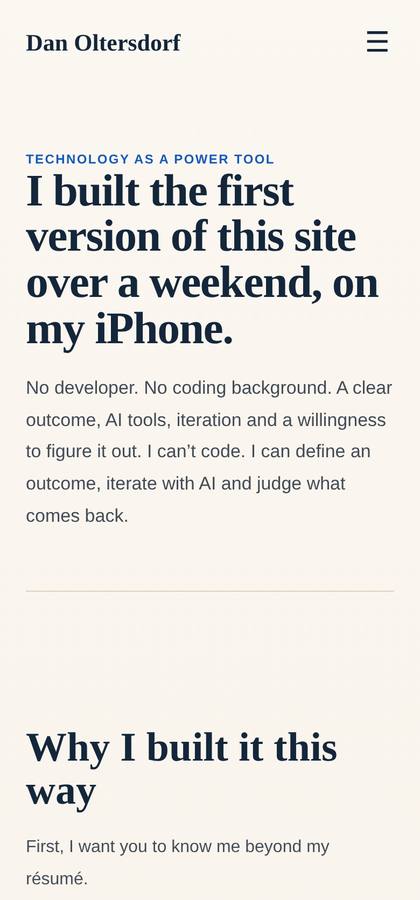
A page that shows how you built the site does more for a technology claim than any sentence about it. Include a short, honest description of your process, the tools, and the guardrails. My page opens with the story of building a pergola with power tools and connects it to my view of AI: it speeds the work, and it still needs judgment and safeguards.
Here is my positioning worksheet and knowledge base. Propose a site map of no more than eight pages and, for each page, the single job it does, the sections it needs, and which knowledge base content it draws on. Then propose a homepage section order. Write it all as plain text for my review. Do not write any code yet.
Phase 3: Building with AI
A working method for going from words to pages, including on a phone.
You do not need to write code. You do need a method. I built and revised my site almost entirely on an iPhone, and the method below is what kept it from turning into chaos.
The method
- Give the assistant context. Project instructions, your knowledge base, your style guide, your positioning worksheet, and your site map.
- Brief the design in words. Audience, the job of the site, the mood you want, two or three sites you admire, and the constraints: mobile first, fast, no stock photos.
- Ask for a plan before code. A written page-by-page outline and a description of the look. Approve or change it.
- Copy before code. For each page, have the assistant write the words. You review them in the chat. Only approved copy goes into pages.
- Build a first version as a small set of files: one HTML file per page, one shared stylesheet, and your images.
- Preview and review on your phone and on a laptop. Write your fixes as a numbered list.
- Apply changes in batches. Ask for all approved changes in one pass and a single zip of the whole site each time. You end up with one file to upload, and never a pile of half-updated files to track.
- Keep dated copies. Before each upload, download the current live files so you can roll back.
What a finished file set looks like
| File | Purpose |
|---|---|
| index.html and other pages | One per page |
| site.css | The look, kept separate from the words |
| site.js | Shared page behavior: the chat box, the nav, the contact form |
| Your resume as a PDF | A download button on the site |
| Images, a favicon, and a short video or two | Compressed, named clearly |
| robots.txt and sitemap.xml | Tells search engines whether and how to index the site |
Prompts that work
Build a mobile-first personal executive website for me. Audience: recruiters, CEOs, and board members. Job of the site: help me get my next executive assignment and let visitors ask questions in a chat. Use the attached knowledge base, style guide, and site map. Mood: [describe]. Avoid stock photos and generic corporate phrases. First, write a plan for the look and the structure. Do not write code until I approve the plan.
Here are my approved changes, numbered. Apply all of them at once to the current files, keep everything else exactly as it is, and give me one zip of the complete site. Then list what changed in each file so I can spot-check.
Review the current site from the point of view of an executive recruiter and then from the point of view of a CEO hiring for my target role. For each of them, tell me in their voice what they conclude in ten seconds, what confuses them, what they do not believe, and what would make them call me. Then propose priorities. We will discuss them one at a time before you change anything.
Practical rules for building on a phone
- Download the assistant's zip to your phone's Files app, then upload from there.
- Upload only the files that changed when one page changes. Upload the whole zip when several change.
- Test after every upload. A hard refresh or a private tab avoids old cached versions.
- Keep a running fix list in the chat so the assistant can tick things off.
- Save large photos and videos at reduced size before adding them. A headshot embedded at full size once made my homepage nearly 750 KB. Moving it to a small separate file cut the page to a fraction of that.
A second opinion sharpens the result
I used a second assistant to produce a full redesign brief and then had the first review it critically, item by item, in discussion before any change. Once eight priorities were agreed, everything was applied together. Cross-checking one tool with another caught over-claiming, unclear wording, and structure problems that neither found alone.
Next: Domain and hosting.
Domain, hosting, and going live
Get the site onto your domain with a working security certificate.
This chapter uses traditional cPanel hosting, the setup I used at GoDaddy. If you use Netlify, Vercel, or another platform, the idea is the same: the platform has a drag-and-drop uploader, and the steps for security certificates happen automatically. See Choose your tools for the comparison.
Step by step: upload the site with cPanel
- Sign in to your hosting account. In GoDaddy that is your dashboard, then Web Hosting, then Manage.
- Open cPanel Admin. This is the control panel for your hosting.
- Open File Manager. It is in the Files section.
- Go into the folder called public_html. This is the folder your domain serves to the world.
- Take a backup. If files exist there already, select them and download them, or compress the folder first.
- Upload your files. Use the Upload button. If you have a zip, upload it, select it in File Manager, and choose Extract.
- Check the file names. Your homepage must be called index.html, in lowercase.
- Visit your domain in a private browser tab and check every page on your phone.
Security certificate check
A working certificate shows a padlock, and visitors never see a warning. Test this on your phone before you share the site.
- In cPanel, open SSL/TLS Status.
- Find your domain. If the certificate is marked self-signed, select it and choose the option to uninstall or remove it.
- Run AutoSSL from the same page, or wait for the scheduled scan. Hosting providers typically run this daily.
- Check again after 24 hours. If it still says no certificate is available, contact your host's support and ask them to force AutoSSL to issue a certificate for your domain.
- When the padlock appears, re-test every download link.
File permissions
If an image or icon does not appear even though it uploaded, its permissions may be too strict. In File Manager, right-click the file, choose Permissions, and set a file to 644. My favicon was stuck at 600 and would not display until this was changed.
Subfolders and subdomains
You can host more than one thing on one domain. A subfolder such as yourdomain.com/guide works by creating the folder inside public_html, which is how a document like this one gets published as a subpage. See Share and protect this guide. A subdomain such as guide.yourdomain.com works by creating it in cPanel under Domains.
Checklist
- The site loads at your domain over https.
- No browser warning appears on phone or laptop.
- All pages, images, and the resume download work.
- The www version and the plain domain both reach the site.
- You have a backup of the previous files.
The chat backend
Get a working AI chat onto your site, with the knowledge base shipped in the repo.
This is the most technical chapter. If you would rather hand it off, give a helper the brief in Getting help and skip to the checklist at the end.
What you are building
A small chat function that runs on a hosting platform, built around three decisions that were not obvious the first time through:
- The knowledge base ships inside the function's own project. It is a text file sitting right next to the code, not fetched live from your website over the open web. A host can quietly serve a "please wait" interstitial page to automated requests and still return a success code, which would let the function silently answer from the wrong text. Keeping the file in the same repository removes that failure mode.
- The page sends a POST request with a JSON body, not a GET request with the question typed into the web address. A long question in a web address can fail in a confusing way, and a question sitting in the address line ends up in ordinary server logs rather than anywhere you would think to look.
- The function logs the question and the answer, not just the question. Reading real answers is the only way to confirm the assistant is representing you accurately. A log of questions alone, especially one built as a side effect of the web address, does not show you that.
Step 1: Create a private repository
- Create a free GitHub account if you do not have one, and store the login in your password manager.
- Create a new repository. Name it something plain, such as
site-chat. Set its visibility to Private. - Leave it empty for now. The next steps add files to it.
Step 2: Get an API key and cap the spending
- Create an account with the AI provider for API access. For Anthropic, that is the developer console. See the API documentation for the current sign-up steps. This is separate from any chat subscription.
- Add billing or credits. The API is billed by usage.
- Set a monthly spending limit right away. I set $20 a month. If the limit is reached, the API stops answering. That is the safety net against a runaway bill.
- Create an API key and give it a name like "website chat." Copy it once, into your password manager.
Step 3: Get the function and the knowledge base into the repository
Ask your assistant to write the function, using the prompt below, or start from the reference sketch further down this page. The result should be two files meant to sit side by side: the function, and your knowledge base as a plain text file.
Write a serverless chat function for Vercel that lives in a GitHub repository alongside a file named knowledge-base.txt. The function should read that file from disk at request time, not fetch it over the network, so it always ships with the deployed code. It should accept a POST request with a JSON body containing a question and a Cloudflare Turnstile token, verify the token using an environment variable named TURNSTILE_SECRET_KEY, and call the Anthropic Messages API with an API key from an environment variable named ANTHROPIC_API_KEY. Cache the knowledge base block using prompt caching. Only allow requests from my domain. After a successful answer, send the question, the answer, and the time to a webhook URL from an environment variable named LOG_WEBHOOK_URL, with a shared secret from LOG_SECRET, so I can review real answers later. Do not log anything else, such as an IP address. Tell me exactly what files to create and what each one does, then explain each part in plain language.
Upload my current knowledge-base.txt to the project before asking, so the function ships with my real content rather than a placeholder.
Step 4: Put the files in the repository
- On your phone or computer, save the files your assistant gave you: the function file, a small configuration file if one is needed, and
knowledge-base.txt. - In GitHub, open your repository and choose Add file, then Upload files.
- Select all the files at once and commit them.
Step 5: Connect the repository to Vercel
- In Vercel, choose Add New, then Project, then Import Git Repository.
- Sign in with GitHub, grant access to just this one repository, and import it.
- Set the project name to something plain. The name can appear in the function's address, so keep it neutral.
- Set the framework preset to Other if asked.
Step 6: Add the environment variables
- Open the project, then Settings, then Environment Variables.
- Add ANTHROPIC_API_KEY with your key as the value. Leave Production checked. Mark it sensitive if the option appears.
- Add TURNSTILE_SECRET_KEY once you reach the protection chapter, and LOG_WEBHOOK_URL and LOG_SECRET once you set up the question log in that same chapter.
- Deploy. A variable does not take effect until the project is deployed, so trigger a deploy after adding any new one.
Step 7: Turn off Deployment Protection
New projects can have protection on by default, which sends visitors to a login page. Your visitors are the public. In Settings, find Deployment Protection and turn off the option that requires login. Save.
Step 8: Test the function directly
Open your function's address in a browser, such as https://your-project-name.vercel.app/api/chat, as a plain GET request. A well-built function can answer that with a small status message confirming the knowledge base loaded and how many characters it has. If you see that, the file shipped correctly. For the real POST request, ask your assistant for a tiny one-page test file, or test from your live page once it is wired up in the next step.
Step 9: Point your page at it
Your chat box on the site calls the function's address with a POST request and a JSON body. Ask your assistant to wire it up, or use the page snippet below as a starting point. After you upload the updated page, test from your real domain on your phone.
Changing the function or the knowledge base later
Because the repository is connected to Vercel, any change you commit in GitHub triggers a new deployment automatically, at the same address. Editing knowledge-base.txt directly in GitHub's browser editor is the easiest way to update your stories once this is set up. See Phase 5.
Reference: the function
This is a sketch for you and your helper. It is meant to show the shape of the job, and details change with the platforms. Ask your assistant to check it against current documentation, and to port in the exact system prompt and model your current function already uses rather than guessing at them.
// Reference sketch — confirm exact details against current platform docs.
// Files expected in this same repository: chat.js, knowledge-base.txt

const fs = require("fs");
const path = require("path");

const ALLOWED_ORIGINS = [
  "https://yourdomain.com",
  "https://www.yourdomain.com",
];

function loadKnowledgeBase() {
  const candidates = [
    path.join(__dirname, "knowledge-base.txt"),
    path.join(process.cwd(), "knowledge-base.txt"),
  ];
  for (const file of candidates) {
    if (fs.existsSync(file)) return fs.readFileSync(file, "utf8");
  }
  throw new Error("knowledge-base.txt not found in deployed files");
}

async function verifyTurnstile(token) {
  const secret = process.env.TURNSTILE_SECRET_KEY;
  if (!secret || !token) return false;
  const resp = await fetch("https://challenges.cloudflare.com/turnstile/v0/siteverify", {
    method: "POST",
    headers: { "Content-Type": "application/x-www-form-urlencoded" },
    body: `secret=${encodeURIComponent(secret)}&response=${encodeURIComponent(token)}`,
  });
  const data = await resp.json();
  return !!data.success;
}

async function logExchange(question, reply) {
  const url = process.env.LOG_WEBHOOK_URL;
  const secret = process.env.LOG_SECRET;
  if (!url || !secret) return;
  try {
    const controller = new AbortController();
    const timeout = setTimeout(() => controller.abort(), 2500);
    await fetch(url, {
      method: "POST",
      headers: { "Content-Type": "application/json" },
      body: JSON.stringify({
        secret,
        time: new Date().toISOString(),
        question,
        answer: reply,
        // Deliberately no IP address — there is nothing here that needs it,
        // and leaving it out avoids a privacy and retention question entirely.
      }),
      signal: controller.signal,
    });
    clearTimeout(timeout);
  } catch (err) {
    console.log("Log write failed", err.message);
  }
}

module.exports = async function handler(req, res) {
  const origin = req.headers.origin;
  if (ALLOWED_ORIGINS.includes(origin)) {
    res.setHeader("Access-Control-Allow-Origin", origin);
  }
  res.setHeader("Access-Control-Allow-Methods", "POST, OPTIONS");
  res.setHeader("Access-Control-Allow-Headers", "Content-Type");

  if (req.method === "OPTIONS") return res.status(204).end();

  if (req.method === "GET") {
    try {
      const kb = loadKnowledgeBase();
      return res.status(200).json({ ok: true, knowledgeBaseChars: kb.length });
    } catch (err) {
      return res.status(500).json({ ok: false, error: err.message });
    }
  }

  if (req.method !== "POST") {
    return res.status(405).json({ success: false, error: "Method not allowed" });
  }

  const { question, token } = req.body || {};

  if (!question || typeof question !== "string" || question.length > 500) {
    return res.status(400).json({ success: false, error: "Invalid question" });
  }

  const human = await verifyTurnstile(token);
  if (!human) {
    return res.status(403).json({ success: false, error: "Verification failed" });
  }

  try {
    const kb = loadKnowledgeBase();
    const response = await fetch("https://api.anthropic.com/v1/messages", {
      method: "POST",
      headers: {
        "Content-Type": "application/json",
        "x-api-key": process.env.ANTHROPIC_API_KEY,
        "anthropic-version": "2023-06-01",
      },
      body: JSON.stringify({
        model: process.env.CLAUDE_MODEL || "claude-sonnet-4-5",
        max_tokens: 700,
        system: [
          {
            type: "text",
            text: "SYSTEM_PREFIX_GOES_HERE\n\n" + kb,
            cache_control: { type: "ephemeral" },
          },
        ],
        messages: [{ role: "user", content: question }],
      }),
    });

    const data = await response.json();
    const reply = data?.content?.[0]?.text || "Sorry, I couldn't come up with an answer.";

    await logExchange(question, reply);

    return res.status(200).json({ success: true, reply });
  } catch (err) {
    console.log("Chat function error", err.message);
    return res.status(500).json({ success: false, error: "Something went wrong" });
  }
};
Reference: the page snippet
<script>
const CHAT_ENDPOINT = "https://your-project-name.vercel.app/api/chat";

function sendQuestion(question, turnstileToken) {
  return fetch(CHAT_ENDPOINT, {
    method: "POST",
    headers: { "Content-Type": "application/json" },
    body: JSON.stringify({ question: question, token: turnstileToken }),
  })
    .then(function (r) { return r.json(); })
    .then(function (data) {
      if (data.success) {
        showAnswer(data.reply);
      } else {
        showAnswer("I stepped away from my desk. Try again in a moment.");
      }
    })
    .catch(function () {
      showAnswer("Something went wrong. Try again in a moment.");
    });
}
</script>
Checklist
- The knowledge base is a file in the repository, not fetched from the website.
- The page sends a POST request with a JSON body, not a GET with the question in the address.
- Spending limit set on the AI account.
- API key stored in the password manager, and entered only as an environment variable.
- Repository connected to Vercel, so a commit redeploys automatically.
- Deployment Protection is off.
- The function returns a real answer in a direct test.
- The chat works from your live domain on a phone.
- Question and answer pairs are landing in a log you can actually read.
Keeping it from being abused
Stop bots and strangers from running up your API bill or misusing the chat.
An open chat box on a public site will get hit by automated traffic eventually, not just real visitors. Two layers handle this: proving a human is there, and capping what can happen even if one slips through.
Cloudflare Turnstile: prove a human is there
- Create a free Cloudflare account and add a Turnstile widget for your domain.
- Choose the "interaction-only" or invisible mode so it does not interrupt visitors with a puzzle most of the time.
- Copy the site key into your page's chat script, and the secret key into your backend as the
TURNSTILE_SECRET_KEYenvironment variable. - Your backend calls Cloudflare's verification endpoint with the token the page sends, and only answers if that comes back valid. See The chat backend.
Caps that hold even if a bot gets through
- A spending limit on the API account. This is the backstop that matters most. See Step 2.
- A maximum question length. Reject anything absurdly long before it reaches the AI call.
- A domain allow-list (CORS). The function should only answer requests whose origin is your own domain, not any page on the internet.
- Rate limiting, if your helper has time to add it: a simple cap on how many questions one visitor can ask in a short window.
What you are not trying to do
You are not trying to stop a determined, technical person from ever reaching your function directly. You are trying to stop ordinary bot traffic and casual abuse from running up a bill or filling your log with garbage. The spending cap is what makes the worst case survivable either way.
Checklist
- Turnstile widget added to the page, site key in the script.
- Secret key in the backend as an environment variable, and the function fails closed without it.
- Question length capped.
- Domain allow-list in place.
- Spending limit confirmed on the API account.
Contact, booking, and email
Get real messages and bookings from the site into your own inbox and calendar.
A visitor who is impressed by the chat needs an easy next step. That is usually one of three things: send a message, book time, or email directly.
A contact form that actually delivers
A plain HTML form has nowhere to send its contents without a backend. A form-handling service sits in between for free at low volume.
- Create a free account with a form service.
- Create a form and get the unique endpoint address it gives you.
- Point your page's form at that address as its action, and confirm the service's own setup instructions for how it expects the fields to be labeled.
- Submit a real test from your live page and confirm the email arrives.
Booking a real time
A scheduling tool removes the back-and-forth of finding a time by email. Create a free account with one, set your real availability, and either link to your booking page or embed it directly on your contact page.
A direct email link
Keep a plain mailto: link visible somewhere too. Some visitors will always prefer to just write an email, especially if they already have something specific in mind.
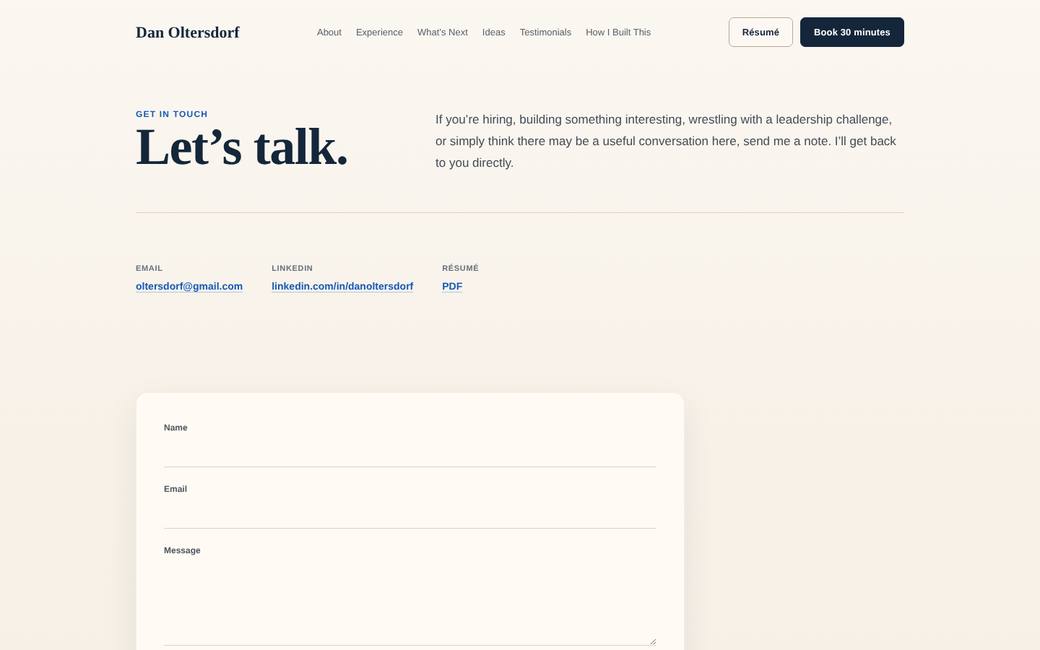
Checklist
- Contact form submits and the email arrives in your real inbox.
- Booking link or embed works and shows real, current availability.
- A direct mailto link is visible on the contact page.
Launch checklist
The final pass before the first stranger sees the site.
Go through this in order, on your phone and on a computer, before you share the link with anyone.
- Domain points at the right host and resolves without errors.
- Every page loads over HTTPS with no browser warning.
- Every navigation link works, on desktop and on mobile.
- The chat answers a real question correctly, and answers something off-topic gracefully.
- The chat works from your actual domain, not just the hosting platform's own address.
- Deployment Protection is off on the chat backend.
- Contact form delivers to your real inbox.
- Booking link shows real, current availability.
- Resume or other downloadable files open correctly.
- Images and screenshots load, and alt text is present.
- Spending limit confirmed on the AI API account.
- Question-and-answer log is receiving real entries.
knowledge-base.txtis not reachable directly if hosted on a public path, or does not exist on a public path at all because it now ships inside the backend repository.- No placeholder text, lorem ipsum, or draft notes left visible anywhere.
- Read every page once, slowly, as if you were a stranger meeting you for the first time.
Keeping it current
The ongoing loop for adding stories and updating content without touching code.
A site like this is never really finished. The loop below is what keeps it current without turning every update into a project.
The loop
- Something happens worth adding — a new story, a sharper way of saying something, a correction.
- Paste it into a chat with your assistant, in the same project where your source material lives, and say what changed.
- Your assistant updates your source document and your knowledge base to match, and tells you plainly what it changed.
- Review the specific change, not the whole document again. Correct anything that drifted from how you would actually say it.
- Push the updated file.
Updating the knowledge base specifically
Because the knowledge base now ships inside the chat backend's own repository rather than living on the public website, updating it means committing a change to that file in GitHub, not uploading through your website's file manager.
- Open your repository in GitHub and open
knowledge-base.txt. - Click the pencil icon to edit it directly in the browser.
- Paste in the updated version your assistant gave you.
- Commit the change directly to the main branch.
- Because the repository is connected to your hosting platform, this alone triggers a new deployment within a minute or two, at the same address. No further steps are needed.
Updating ordinary page text
Page text such as your bio, your experience section, or testimonials lives in the plain HTML files on your main hosting account, the same way it always has. Edit those through your host's file manager, as covered in Domain and hosting.
A light cadence, not a schedule
There is no required frequency. A good trigger is any time you tell the same new story twice in real conversation, or notice the chat gave an answer that was not quite right.
Troubleshooting
Specific errors people actually hit, and what fixed them.
This list grows from real problems, not guesses. Find the symptom closest to yours.
The chat gives a strange or outdated answer, but only sometimes
Likely cause: the knowledge base is being fetched live from the website instead of shipped inside the backend's own repository. Some hosts quietly serve an automated "one moment please" interstitial page to rapid or automated requests, and still return a success code, so the function reads that interstitial text instead of the real knowledge base and answers from it. Fix: move the knowledge base file into the chat backend's repository and read it from disk at request time. See The chat backend.
Long questions fail, or questions with certain punctuation fail
Likely cause: the question is being sent as part of the web address (a GET request) rather than inside the body of the request (a POST request). Web addresses have practical length and character limits that ordinary form data does not. Fix: switch the page's chat call to a POST request with a JSON body, and update the backend to read the question from the request body instead of the address.
You cannot tell whether the chat is actually answering well
Likely cause: only the questions are being logged, often as a side effect of them appearing in the web address, with no record of what the assistant actually said back. Fix: have the backend log the question and the answer together, with a timestamp, to somewhere you can actually read — a spreadsheet is enough. Deliberately skip logging the visitor's IP address, which avoids a privacy and data-retention question you do not need to take on for a benefit you will not use.
The chat worked yesterday and returns an error today
Check, in order: the spending limit on the AI API account, whether an environment variable was changed without a redeploy afterward, and whether Deployment Protection somehow got switched back on.
The site shows an "update your browser" message or looks broken on an old phone
Check whether a very recent CSS or JavaScript feature was used that an older phone browser does not support. Ask your assistant for a version with wider compatibility.
A visitor cannot submit the contact form
Confirm the form's action address is current, and that the field names match what the form service expects. Submit a real test yourself first.
Your assistant suggests code that references a real secret or key
Stop and ask for a version using a placeholder instead. See Keeping it from being abused and never paste a real key into a chat.
Prompt library
Every prompt from this guide, gathered in one place to copy.
Every prompt box from this guide, collected here so you do not have to hunt back through chapters.
Open any chapter and use your browser's find feature to jump straight to its own prompt boxes. Every prompt in this guide is written to be copied as-is, with your own specifics dropped in where marked. The chapters that include one:
- Interview sessions — starting a structured interview with your assistant
- The recap loop — asking for a written recap after each session
- Building the knowledge base — turning source material into assistant-ready text
- Voice rules — giving your assistant your drafting rules
- Positioning — the site map brief
- The site map — the site map brief, in full
- Building with AI — build and revision prompts
- The chat backend — asking for the backend function
- Templates — blank starting documents
- Getting help — the brief to send a technical helper
Templates
Starting documents for your own source material and knowledge base.
These are blank starting points, not examples of my own content. Copy the structure, then fill it with your own specifics.
Source document outline
Identity and purpose statement
Career history, role by role, with real numbers where you have them
Two or three stories that show how you actually work, told in full
Your philosophy of leadership, in your own words, not generic language
What you are looking for next, specifically
A short list of things you will not say publicly, and why
Knowledge base header
[YOUR NAME] KNOWLEDGE BASE

This document is the source material for an AI assistant answering questions about [YOUR NAME] on [YOUR NAME]'s website. When answering, speak about [YOUR NAME] in the third person, using only the facts below. If a question falls outside what is here, say so plainly rather than guessing.
Interview session opener
I want to do a structured interview session with you about [TOPIC]. Ask me one question at a time, go deep rather than wide, and write up a recap in my own words when we are done so I can correct anything before it becomes part of my permanent source material.
Getting help
What to hand a technical friend or freelancer, and what to still do yourself.
You do not have to do every step in this guide alone. Here is what to hand off, and what stays yours even when you get help.
What to hand a helper
- Creating the GitHub repository and connecting it to the hosting platform.
- Writing or reviewing the chat backend function.
- Setting up Cloudflare Turnstile and the question-and-answer log.
- Diagnosing an error message you do not understand.
What stays yours
- The actual content: your story, your voice, your boundaries on what gets said publicly.
- Approving the final knowledge base text before it goes live.
- Reading real answers from the chat log and correcting anything inaccurate.
- Every password and API key, kept in your own password manager, never only in a helper's head.
Brief to copy and send a helper
I'm building an AI-powered personal website. I need help with [specific task — e.g. "setting up a serverless chat function on Vercel that ships its knowledge base file inside its own GitHub repository rather than fetching it from my website"]. I have the content and copy ready. Here is what I need from you specifically: [list]. I'll keep my own copies of any passwords or keys you set up.
Glossary
Plain-language definitions for every technical term used in this guide.
- API key
- A password-like string that lets your code use a paid service, such as an AI provider. Treat it exactly like a password.
- API
- A way for one piece of software to ask another piece of software to do something, such as asking an AI provider to generate an answer.
- Repository (repo)
- A folder of files tracked by version control, usually hosted on a service like GitHub. The chat backend's code and knowledge base live in one.
- Auto-deploy
- When a hosting platform automatically rebuilds and republishes a project every time a connected repository changes, with no manual upload step.
- Webhook
- A URL that one piece of software calls automatically when something happens, used here to send each question-and-answer pair to a log.
- CORS
- A browser security rule that can block a webpage from calling a function hosted somewhere else unless that function explicitly allows the page's domain.
- Deploy / deployment
- Publishing a new version of code so it is live and reachable.
- DNS
- The system that points a domain name at the server that should answer for it.
- Environment variable
- A setting, such as a password or key, stored on the hosting platform rather than written into the code itself.
- Function / serverless function
- A small piece of backend code that runs on demand, without you managing a server yourself.
- GET request / POST request
- Two ways a webpage can ask a backend function for something. A GET request puts information in the web address itself; a POST request puts it inside the body of the request, which handles longer or more sensitive data more reliably.
- HTTPS
- The secure version of the web address protocol, shown as a lock icon in the browser.
- JSON
- A plain text format for structured data, used to send the question and receive the answer in the chat function.
- Knowledge base
- The document containing the facts an AI assistant draws from when answering questions about you.
- Prompt
- An instruction or question given to an AI assistant.
- Prompt caching
- A feature that lets an AI provider reuse a large, unchanging block of text, such as a knowledge base, across requests more cheaply.
- Rate limiting
- Capping how many requests one visitor can make in a short time, to prevent abuse.
- Turnstile / CAPTCHA
- A check that confirms a real visitor, not an automated bot, is using a form or chat box.